
Batch sync WooCommerce customers to HubSpot, on demand or on a schedule
Run incremental or full syncs by hand, or schedule them from every 15 minutes to once a day. Filters, batch sizes and rate-limit protection are built in.
- Incremental and full sync on every plan
- Scheduled sync from every 15 minutes to once a day (Freelance and up)
- Filters, batch sizes and rate-limit protection
- An audit history of every operation
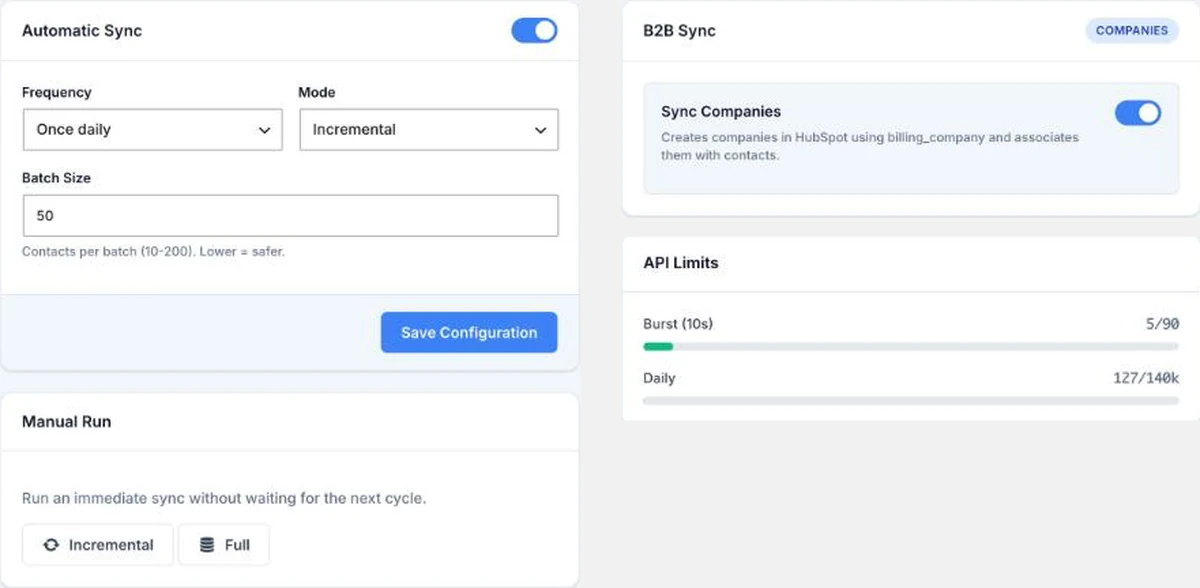
Incremental and full syncs, filters and the audit log are part of the core connector. Switching on Automatic Sync requires Freelance, Agency or Enterprise.
Keeping a CRM up to date by hand does not scale
A one-off import is a snapshot. The sync engine keeps WooCommerce and HubSpot in step.
Stale data
A single import is out of date as soon as the next customer registers.
Too many requests at once
Sending everything in one go can run into HubSpot API limits.
No record of what happened
When a sync fails, you need to know which contact failed and why.
What the sync engine does
Manual options work on every plan. The schedule needs Freelance or higher.
Incremental sync
Sends customers modified since the last sync, up to the batch size.
Full sync
Queues every customer and processes them batch after batch (10 to 200 per batch), on demand or on a schedule. Customers left over by the HubSpot rate limit stay in the queue for the next run.
Scheduled sync (Freelance and up)
Runs automatically every 15 or 30 minutes, hourly, every 6 or 12 hours, twice a day or daily, in incremental or full mode.
Freelance and up
Segmentation filters
Minimum orders, minimum spend, allowed countries, B2B customers only and registered-after date.
Rate-limit protection
The plugin counts its own requests per portal (90 per 10 seconds, 140,000 per day). When the local limit is reached, a batch waits up to 10 seconds and stops if the limit is still on.
Audit log
Every operation is logged as success, error, warning or skipped. Browse it in Analytics under Audit History. Entries are kept for 90 days.
Set up a sync in four steps
Labels are quoted from the plugin admin (WordPress dashboard > MAW HubSpot).
1. Connect and install properties
Add your token in Connections, then click Install Properties Automatically.
2. Set batch size and filters
In Sync, choose a batch size from 10 to 200 and any filters, then save.
3. Run it manually
Use Incremental or Full under Manual Run. Check the result in Dashboard.
4. Schedule it (Freelance and up)
Turn on Automatic Sync, pick the frequency and mode, then click Save Configuration.
Schedule options
Scheduled runs use WordPress cron (WP-Cron).
- Mode: Incremental or Full.
- Batch size: 10 to 200 customers per batch.
- Scope: registered customers (the WordPress customer role).
- Failed requests are logged. There is no automatic retry or backoff.

Settings in Automatic Sync
| Setting | Options |
|---|---|
| Frequency | Every 15 minutes, Every 30 minutes, Every hour, Every 6 hours, Every 12 hours, Twice daily, Once daily |
| Mode | Incremental, Full |
| Batch Size | 10 to 200 (default 50) |
Good to know before you buy
What the sync engine does and does not do.
Full sync is queued, not instant
A full sync queues all customers and works through them batch after batch. A large store can take several runs if the HubSpot rate limit is reached. For ongoing updates, use incremental sync.
No automatic retries
If HubSpot returns an error or the rate limit is reached, the item is logged. There is no backoff or retry queue.
Scheduling needs Freelance
Manual sync works on every plan. Switching on the schedule needs Freelance or higher.
Frequently asked questions
Answers specific to scheduled sync. For plans, licensing and requirements see the overview page.
Which plan do I need for scheduled sync?
Freelance or higher (Freelance, Agency or Enterprise). Manual incremental and full syncs are available on every plan.
What is the difference between incremental and full?
Incremental sends customers modified since the last sync. Full processes a batch of customers regardless of the last sync date. Both stop at the batch size.
How often can it run?
Every 15 minutes, every 30 minutes, hourly, every 6 hours, every 12 hours, twice a day or daily.
Will it hit HubSpot's API limits?
The plugin keeps its own request counters per portal (90 requests per 10 seconds and 140,000 per day). When the local limit is reached, the batch waits up to 10 seconds and stops if it is still reached.
Does it sync guest customers?
No. The batch sync covers registered customers with the customer role. Guest orders reach HubSpot when the order is marked Completed.
Is the plugin admin available in English?
The plugin admin is in English and includes a Spanish translation (es_ES). This page quotes the English labels exactly as they appear in the admin.
Is it a subscription? Is there a free trial?
It is not a subscription. Pay once. Use it forever. Updates and support included for 1 year; renew for 25% off to keep receiving them. There is no free trial. A 14-day money-back guarantee applies.
Scheduled sync starts at Freelance
Pay once. Use it forever. Updates and support included for 1 year; renew for 25% off to keep receiving them.
Starter
For one site that just needs its data in HubSpot- 1 WordPress site
- Does not include scheduled sync
- Updates and support for 1 year
Freelance
For freelancers and small businesses that want carts and deals in HubSpot- 3 WordPress sites
- Everything in Starter, plus:
- Includes scheduled sync
- Updates and support for 1 year
Agency
For agencies managing several clients and HubSpot portals- 25 WordPress sites
- Everything in Freelance, plus:
- Includes scheduled sync
- Updates and support for 1 year
Enterprise
For organizations running MAW HubSpot Connector on many sites- Unlimited sites
- Everything in Agency, plus:
- Includes scheduled sync
- Updates and support for 1 year
Prices in EUR, VAT included. One-time payment, no subscription. 14-day money-back guarantee. No free trial.
- Your license works forever
- Updates and support included for 1 year
- Renew for 25% off to keep receiving them